Avoid LinkedIn Bot Detection While Managing Multiple Profiles with Linked Helper, Incognition, and Bright Data
As LinkedIn becomes an increasingly powerful tool for networking and B2B marketing, many professionals and consultants need to manage multiple accounts efficiently. However, using automation tools like Linked Helper can trigger LinkedIn’s bot detection mechanisms if not handled carefully. This is where Incognition comes into play.
Incognition is a browser profile management tool designed to keep each account’s browsing activity isolated, helping users maintain privacy and avoid detection by platforms that monitor for suspicious activity, like LinkedIn.
Why Use Incognition?
Managing multiple LinkedIn profiles on a single browser without proper separation can lead to account flagging, restrictions, or even bans. Here’s how Incognition solves this issue:
- Profile Isolation: Each browser profile in Incognition operates independently, with its own set of cookies, cache, and browsing history. This mimics real user behavior and reduces the chances of detection.
- Customizable IPs: By integrating Incognition with proxies, you can assign a unique IP address to each profile, further enhancing anonymity.
- Efficient Management: Incognition offers a user-friendly dashboard to create, manage, and switch between multiple profiles seamlessly.
- Team Collaboration: If you work with a team, Incognition allows shared access to specific browser profiles without compromising security or triggering LinkedIn’s defenses.
Setting Up Incognition with Linked Helper and Bright Data Proxies
To maximize efficiency and minimize risk, follow these steps to use Incognition alongside Linked Helper for managing multiple LinkedIn accounts, starting with setting up Bright Data Proxies.
Step 1. Set Up The ISP Proxy with Bright Data
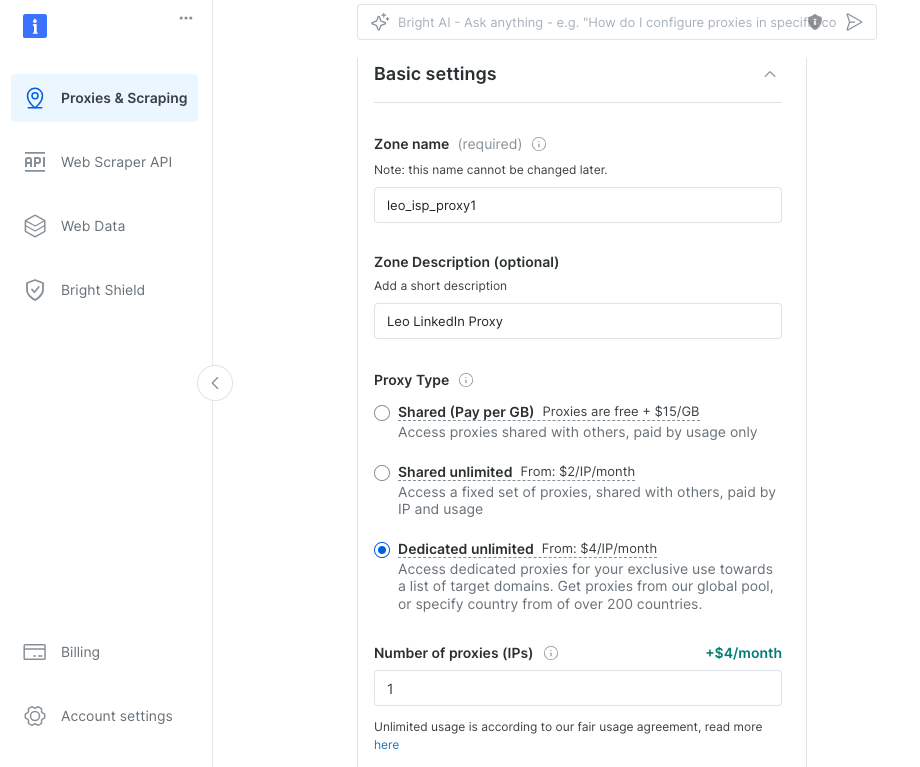
Purchase an ISP proxy from Bright Data. Assign a unique ISP proxy to each browser profile to ensure every account appears to operate from a different location. After following the steps below, make sure to test the Bright Data proxy with Incognition to ensure it’s working.
Bright Data Instructions: Name your zone according to the customer. Bright Data will name it according to the type of proxy it is – in our case, isp_proxy1. Prepend the Zone name with the customer name, Leo in this case.
Step 2. Install and Configure Incognition
- Download Incognition: Visit Incognition’s official site to download the software for your operating system.
- Create Profiles in Incognition: After installation, create a new browser profile for each LinkedIn account you manage. In the left navigation, click Create Single. https://www.youtube.com/watch?v=EUhUlw9gHYs
- Assign a unique name to each profile where it says Browser Profile Name (e.g., “Company 1 – LinkedIn” or “Client X – Marketing”). You can also add a Group, in our case we named it LinkedIn PST, for Pacific Standard Time, which is highly recommended for the following reasons: Improved Organization: Grouping profiles allows you to categorize them based on their purpose, such as marketing campaigns, client accounts, or geographic targeting. It simplifies navigation, making it easier to locate and manage specific profiles within a large set. Shared Settings and Configuration. Groups can often share settings, like proxy configurations, browser extensions, or automation scripts. This ensures consistency across profiles within a group. Streamlined Access Control. When working in teams, assigning profiles to a group allows team members to access only the relevant profiles for their role or project.This ensures better security and operational efficiency. Performance Monitoring. Groups make it easier to track and evaluate the performance of specific campaigns or projects. For instance, you can quickly see how a group of profiles for a particular ad campaign is performing. Batch Operations – Many tools allow you to perform bulk actions (e.g., start/stop all profiles, update settings) on grouped profiles, saving time and effort. This is particularly useful for scaling outreach efforts or updating configurations across multiple profiles. Segregation of Tasks Grouping profiles helps maintain a clear boundary between different projects or campaigns, reducing the risk of cross-contamination (e.g., accidentally using the wrong account or proxy). Audit and Compliance. By organizing profiles into groups, you can maintain clearer records of which profiles were used for what purpose, aiding in compliance and accountability. Managing LinkedIn B2B campaigns across multiple customers, grouping profiles can help streamline operations, ensure client-specific customization, and maintain better control over your campaign activities.
- Click Add Group and name the group, i.e. LinkedIn PST (for Pacific Standard Time). You’ll now see your new group in the drop-down menu. Select it.
- Select your operating system – Windows in our case.
- Click Add Proxy in Incognito to ensure the IP configuration is in place. Have your IP, port, username, and password ready to enter from Bright Data. Login to Your Bright Data Account. Navigate to the Bright Data dashboard. Go to the Proxy Zone Click on the Proxies or Zone tab. This is where Bright Data organizes your proxy configurations based on the zones you’ve set up. Select the specific Zone for the proxy you want to use (e.g., your ISP proxy zone). View Zone Settings. Within the selected zone, you’ll see the proxy credentials and settings, including: Proxy IP, Port number(s), Username and password (if authentication is required), Port Number Details, Ports for HTTP Proxies: Usually in the form of brd.superproxy.io:33335 or something similar. Some zones or configurations may provide multiple ports for different purposes, such as sticky or rotating sessions. Don’t check the checkbox for rotating proxy since you want this to look like a residential ISP IP address. Nothing goes in the Proxy rotation API url text box either. Leave the Proxy information provider Main provider (the default)
- Back to Incognition. Connection type: HTTP proxy, Proxy (ip:port) is cut and pasted from Bright Data
- Click Check Proxy. If successful, it’ll show you the IP, Country. Latitude, Longitude, etc.
- Click the three dots on the right, and go to Cookies > Import Cookies. Get the cookies from the user’s other device while they’re logged into LinkedIn and import them.
- Click Add proxy.
- Click Check Proxy. You will see a status of ready if it was set up correctly.
- Click Start and it will launch a Chrome browser. You can test the IP address with a website like ipinfo.io or whatismyipaddress.com.
Step 3: Install Linked Helper
- Download Linked Helper: Install Linked Helper on the server or your PC if you haven’t already. https://www.linkedhelper.com/
- Click LinkedIn Accounts in the left navigation. Click Add Account. Enter the user name and password. Put your mouse under Instance state, and click the gear icon to Assign license. At this point you should have a paid subscription already, so find the ID you want to assign to the user, and select the ID by clicking the radio button.
- Click Add Proxy. Under Instance state, click Assign Proxy. For protocol, select https://, IP/hostname is brd.superproxy.io:33335 from Bright Data above. Ports is 33335. Name is leo_isp_proxy1. Click Test and add. You will receive confirmation: “Connection is ok There are no problems with proxy or linked-helper proxy. Click OK. Click Assign in the lower right.
- Set Activity Limits: To avoid suspicion, configure Linked Helper to mimic human behavior. Limit the number of connection requests, messages, and profile views per day.
Step 3: Use Incognition and Linked Helper Together
- Open the Incognition browser profile assigned to a LinkedIn account.
- Start Linked Helper and run campaigns specific to that profile.
- Repeat this process for each account in its dedicated browser profile.
- Import the LinkedIn cookies for each account if your customer is logged in elsewhere.
Best Practices for Using Incognition with Linked Helper
- Rotate Proxies Regularly: Even with proxies, frequent use of the same IP for many accounts can lead to detection. Rotate proxies periodically to ensure consistency with real user behavior.
- Humanize Automation: Schedule breaks and randomize actions in Linked Helper to simulate natural usage patterns. https://infinitekb.com/linkedhelper/
- Monitor Performance: Keep track of activity logs in Linked Helper and watch for signs of LinkedIn account warnings. Adjust your settings if necessary.
- Stay Updated: Both LinkedIn and bot detection mechanisms are evolving. Regularly update Incognition, Linked Helper, and stay informed about LinkedIn’s policies.
Conclusion
Combining Incognition with Linked Helper and Bright Data creates a robust system for managing multiple LinkedIn accounts while minimizing detection risks. By isolating profiles, using proxies, and adopting best practices, you can scale your outreach efforts without compromising the safety of your LinkedIn accounts.
Whether you’re managing accounts for clients or running multiple campaigns for your business, Incognition is a vital tool for staying under the radar in LinkedIn’s strict ecosystem.
Need help setting up LinkedIn campaigns? Reach out via the Contact Us page. You can also see the official documentation here: https://incogniton.com/proxy-integrations/brightdata/