https://www.acronis.com/en-us/support/documentation/ATI2024/index.html#cshid=7944
A Comprehensive Guide
In today’s data-driven world, businesses face an ever-growing need to protect critical data. Accidental file deletions, corruption, and data loss due to ransomware or hardware failure can significantly disrupt operations. For this reason, having a robust file-level recovery solution is essential for organizations to quickly restore lost or corrupted files. Acronis File-Level Recovery provides a reliable and efficient solution to ensure that businesses can quickly recover from such incidents with minimal downtime.
In this article, we’ll discuss the key features of Acronis File-Level Recovery, compare it with competitors, explore the available recovery options, and provide a step-by-step guide for administrators to effectively use the feature.
What is Acronis File-Level Recovery?
Acronis File-Level Recovery enables businesses to recover individual files or folders from a backup, allowing for the restoration of specific data without the need to restore entire systems or volumes. This recovery method is particularly useful when a single file or a set of files is lost or corrupted, as it allows organizations to quickly restore the affected data without lengthy downtime or unnecessary restores of non-affected files.
When performing a file-level recovery in Acronis, the recovery destinations are typically Original (the original location where the file was stored) or Custom locations (a different folder or location where the file can be restored). This gives administrators flexibility in recovering files either back to their original location or to an alternative destination.
Key Features of Acronis File-Level Recovery:
- Granular Recovery: Restore individual files or folders instead of performing a full system restore, which saves both time and storage space.
- Original or Custom Recovery Locations: You can restore files to their original location or to a custom destination. This flexibility ensures that files can be recovered to a safe location or even to an alternative system.
- Versioning: Acronis allows you to recover multiple versions of a file, giving you the ability to roll back to a previous version in case of file corruption or unintended changes.
- Non-Disruptive: File-level recovery ensures that the rest of the system is unaffected, so business operations can continue without interruption.
- Cross-Platform Recovery: Acronis supports file-level recovery for various operating systems, including Windows, Linux, and macOS, making it versatile for mixed environments.
Acronis vs. Competitors: Differentiators
When compared to other data protection solutions, Acronis File-Level Recovery stands out for several reasons:
1. Speed and Efficiency:
Acronis’ recovery process is faster and more efficient due to its use of incremental backups. Unlike competitors who may perform a full restore or require extensive data scanning, Acronis only restores the changed data, reducing recovery times.
2. Comprehensive Protection:
Many competitors offer file-level recovery, but Acronis goes a step further by providing comprehensive protection across multiple workloads, including physical machines, virtual environments, cloud storage, and mobile devices. This ensures that your organization’s data is protected regardless of where it resides.
3. Flexibility in Recovery Locations:
Acronis allows recovery to both the original and custom locations, whereas some competitors only support recovery to the original location. This flexibility is crucial in scenarios where you may need to recover files to a different directory, server, or location within the network to avoid overwriting or contaminating other data.
4. Integration with Cloud Storage:
Acronis integrates seamlessly with cloud storage, allowing businesses to restore files from both on-premises and cloud backups. This feature gives organizations an added layer of disaster recovery protection that many competitors lack, especially in hybrid cloud environments.
5. Advanced Security Features:
Acronis provides data encryption during both backup and recovery processes, ensuring that sensitive data remains protected during transit. Some competitors may not offer the same level of security, leaving data vulnerable during recovery.
Options for File-Level Recovery
Acronis File-Level Recovery provides several recovery options, allowing administrators to tailor the recovery process based on the organization’s needs. These options include:
1. Original Location Recovery:
This option restores files to their original location on the system. It is typically used when the file loss is due to accidental deletion, and the file needs to be restored exactly where it was.
2. Custom Location Recovery:
With this option, administrators can restore files to a custom directory or location, which is especially useful in cases where the original location is compromised, or where you want to avoid overwriting existing files during the recovery process.
3. Multiple Version Restores:
Acronis File-Level Recovery supports restoring different versions of a file. This feature is particularly beneficial if a file was corrupted or changed unintentionally. You can roll back to a previous version to restore the data to its original or desired state.
4. Cross-Platform Recovery:
Acronis allows file-level recovery across various platforms, including Windows, macOS, and Linux. This makes it an ideal solution for mixed environments where multiple operating systems are in use.
5. Cloud-Based Recovery:
For businesses using Acronis’ cloud backup solutions, file-level recovery can be performed directly from the cloud. This allows administrators to recover files even if the primary server or local storage is unavailable, ensuring business continuity in the event of a disaster.
Step-by-Step Guide: How to Perform Acronis File-Level Recovery
Performing a file-level recovery with Acronis is straightforward and can be done in just a few simple steps. Below is a guide for administrators to recover files using Acronis Backup.
Step 1: Access Acronis Backup Console
- Open the Acronis Backup or Acronis Cyber Protect console from the device or system where you want to restore the files.
- Log in with your administrator credentials.
Step 2: Choose the Backup to Restore From
- In the console, navigate to the Recovery tab.
- Select the backup from which you want to recover files. You can choose from a local backup or a cloud-based backup.
Step 3: Select File-Level Recovery
- After selecting the backup, you will see various recovery options.
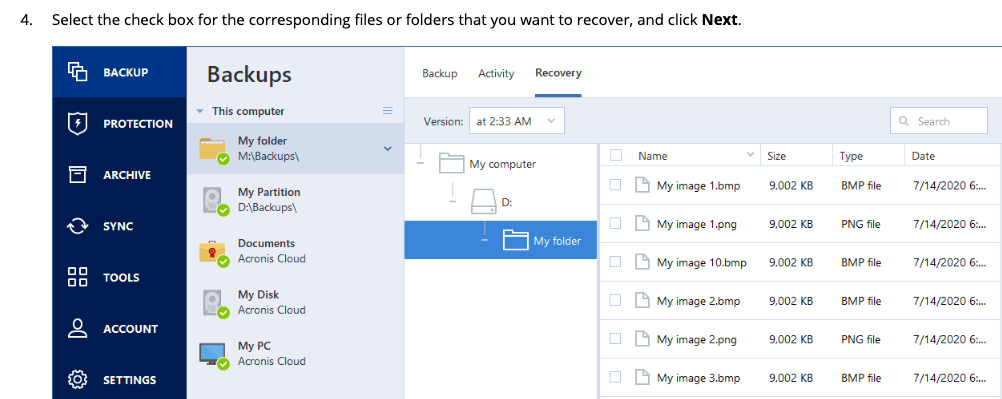
- Choose File Recovery or Files and Folders (depending on your version of Acronis).
- Acronis will display a file tree of the backup. Browse through the files and folders to locate the ones you need to restore.
Step 4: Choose Recovery Destination
- Once the files are selected, you will be prompted to choose the recovery destination.
- You can choose to restore the files to their original location or specify a custom location.
Step 5: Initiate Recovery
- Click Restore to begin the recovery process.
- Acronis will restore the selected files, either to the original location or to the custom location you have specified.
Step 6: Verify the Recovery
- After the recovery process is complete, navigate to the recovery destination (original or custom) to verify that the files are restored successfully.
- Check for the integrity of the files and confirm that the recovery was successful.
Step 7: Version Restore (Optional)
- If you are recovering a file to a previous version, use the Restore Versions option available in Acronis. You can select which version of the file you wish to restore based on the backup history.
Best Practices for Acronis File-Level Recovery
- Regular Backups: Ensure that you are performing regular backups to protect against data loss. Incremental backups can reduce the time and storage needed for file-level recovery.
- Test Recovery Procedures: Periodically test file-level recovery procedures to ensure that the process works as expected and that you can recover files quickly in an emergency.
- Use Custom Locations for Critical Files: When recovering critical files, use custom locations to avoid overwriting important data during the recovery process.
- Monitor Backup Health: Regularly monitor your backup status to ensure there are no failures or missed backup jobs that could affect your ability to recover data.
Conclusion
Acronis File-Level Recovery offers a powerful, flexible solution for businesses looking to recover individual files or folders quickly and efficiently. Compared to other backup solutions, Acronis stands out due to its speed, ease of use, and comprehensive protection across cloud and on-premises environments. With the ability to recover files to original or custom locations, granular versioning, and cross-platform recovery, Acronis ensures that businesses can minimize downtime and get back to business swiftly after a data loss incident.
By following the simple steps outlined in this guide, administrators can confidently use Acronis File-Level Recovery to protect critical data and ensure business continuity.