https://www.acronis.com/en-us/blog/posts/continuous-data-protection
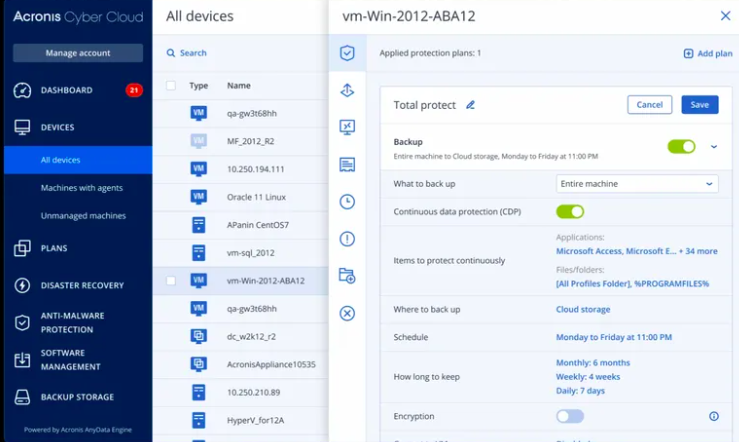
Acronis Continuous Data Protection (CDP) is a real-time data protection feature designed to ensure that critical data is consistently safeguarded against accidental loss or damage. Unlike traditional scheduled backups, which occur at specific intervals, CDP actively monitors and saves changes to files as they happen, providing near-zero data loss in the event of a system failure, human error, or cyberattack.
Continuous Data Protection (CDP) is part of the core features of Acronis Cyber Protect Cloud. CDP enables real-time backup of data as it changes, providing near-instantaneous recovery to minimize data loss. This feature is particularly useful for businesses that require continuous protection of their data and want to avoid the risk of losing any information between scheduled backup intervals. It ensures that critical data is always protected and recoverable with minimal downtime.
True.
The goal of Continuous Data Protection (CDP) is to minimize data loss by continuously capturing changes to data as they occur. This results in an extremely low Recovery Point Objective (RPO), often close to zero. Unlike traditional backup methods that run on scheduled intervals (e.g., daily or hourly), CDP allows for near-instantaneous recovery of data, ensuring that as little data as possible is lost between backup cycles.
Key Features of Acronis CDP:
- Real-Time Data Backup:
- CDP continuously monitors and captures changes to files, ensuring that the most up-to-date versions are always protected.
- This reduces recovery point objectives (RPOs) to near-zero, minimizing potential data loss.
- File-Level Protection:
- Users can select specific folders, files, or file types for continuous protection, allowing for a focused and efficient backup process.
- Ideal for mission-critical documents like financial data, contracts, and other sensitive files.
- Integration with Acronis Cyber Protect:
- CDP integrates seamlessly with Acronis’ broader suite of protection solutions, including advanced anti-malware and backup capabilities.
- Combines data protection with cybersecurity to safeguard data against ransomware and other cyberthreats.
- Efficient Resource Utilization:
- Lightweight on system resources, ensuring that the continuous backup process does not degrade system performance.
- Stores only incremental changes to reduce storage requirements.
- Quick Recovery:
- Enables recovery of the most recent file versions almost instantaneously, improving operational continuity in case of data loss or corruption.
Use Cases for Acronis CDP:
- Small and Medium Businesses (SMBs): To protect vital operational files without the need for frequent manual backups.
- Professional Services: For organizations like law firms or accounting firms that need up-to-the-minute file protection.
- Ransomware Protection: If a system is attacked, CDP ensures that the latest file versions are protected and recoverable.
Supported Environments:
- Primarily designed for Windows operating systems.
- Can be configured to protect specific folders or critical application data, such as databases or email systems.
In Acronis, Continuous Data Protection (CDP) is primarily supported for Windows operating systems. Specifically, it supports the following OS for CDP functionality:
- Windows Desktop:
- Windows 11
- Windows 10
- Windows Server:
- Windows Server 2022
- Windows Server 2019
- Windows Server 2016
CDP is not natively supported on Linux or macOS systems within the Acronis platform. However, you can still use traditional backup and recovery options for these OSes.
To position Acronis Continuous Data Protection (CDP) effectively in your MSSP offerings, you can highlight its real-time protection capabilities while integrating it with broader cybersecurity and managed services to deliver comprehensive value to your clients.
Steps to Configure and Offer Acronis CDP:
1. Set Up Acronis CDP for Clients
Preparation:
- Ensure the client’s environment supports Acronis CDP (Windows OS for now).
- Install the Acronis Cyber Protect agent on the client’s endpoints and servers.
- Confirm that storage (on-premises or cloud) is configured for incremental backups.
Configuration Steps:
- Open the Acronis Management Console.
- Navigate to the Backup Plans tab and create a new plan.
- In the What to Backup section:
- Choose “Files and Folders.”
- Select critical folders (e.g., finance, operations, or HR data).
- Enable Continuous Data Protection:
- Check the box for CDP.
- Define the file types to monitor (e.g.,
.docx,.xlsx,.pdf, etc.).
- Set Recovery Point Retention Policies:
- Define how long incremental changes should be kept to balance cost and storage.
- Assign the backup plan to specific devices or users.
2. Integrate CDP with Acronis Cyber Protect
- Pair CDP with Acronis Anti-Malware Protection:
- Use behavioral analysis and ransomware protection to protect against zero-day threats.
- CDP ensures real-time file recovery even if files are corrupted during an attack.
- Enable Patch Management:
- Keep Windows systems updated to minimize vulnerabilities that can lead to data loss.
- Activate Cloud-to-Cloud Backup:
- For Microsoft 365 or Google Workspace, combine periodic backups with CDP for maximum protection.
3. How to Position CDP in Your MSSP Offering
Value Proposition for SMBs:
- Data Loss Prevention: Highlight that CDP offers near-zero RPOs, crucial for businesses with high uptime and accuracy demands, like hospitality or financial services.
- Ransomware Defense: Explain how CDP provides instant file recovery even if ransomware encrypts files.
- Affordable Customization: Tailor plans to protect only the most critical files and folders to save on storage costs.
Messaging for Sales Pitches:
- “Never Lose a Critical File Again”: Emphasize CDP’s ability to restore files exactly as they were seconds before an issue.
- “Seamless Recovery During Ransomware Events”: Pair CDP with advanced cybersecurity for a robust, affordable solution.
4. Create Tiered Packages with CDP
- Basic Plan: Scheduled backups and cybersecurity protection.
- Premium Plan: Includes CDP for critical files, ransomware recovery, and disaster recovery (DR) options.
- Enterprise Plan: Full CDP for all endpoints, 24/7 monitoring, and tailored compliance solutions.
5. Support Clients in Ongoing Optimization
- Provide training on CDP’s benefits.
- Conduct quarterly assessments of their backup configurations to ensure the right files are protected.
- Proactively monitor storage utilization and advise on retention policy adjustments.
6. Leverage Your MSSP’s Unique Value
- Expertise in Hospitality: Highlight your experience in addressing challenges specific to the hospitality industry, like securing guest data or transactional systems.
- Cost-Effective Vulnerability Assessments: Use CDP findings to demonstrate where small businesses may be at risk, encouraging a switch to Acronis.