https://www.acronis.com/en-us/products/cloud/cyber-protect
Benefits, Supported Workloads, and Administrator Setup
In today’s digital landscape, protecting data is more crucial than ever. As organizations increasingly rely on cloud-based applications and workloads, comprehensive protection solutions that combine backup, cybersecurity, and data management are in high demand. Acronis Cyber Protect Cloud is one such solution, offering a unified platform that integrates data protection, security, and management for businesses of all sizes. This guide explores the key benefits of Acronis Cyber Protect Cloud, compares it to competitors, outlines the types of workloads supported, and provides a step-by-step how-to for administrators to get started.
What is Acronis Cyber Protect Cloud?
Acronis Cyber Protect Cloud is a comprehensive cloud-based solution that integrates backup, disaster recovery, anti-malware, and endpoint protection into one easy-to-use platform. Designed for Managed Service Providers (MSPs) and businesses that need to protect their cloud, hybrid, and on-premises workloads, Acronis Cyber Protect Cloud offers advanced protection features that help organizations safeguard their data against cyber threats, natural disasters, and accidental loss.
With its easy-to-deploy architecture, flexible deployment options, and centralized management console, Acronis Cyber Protect Cloud provides an efficient way to protect critical workloads and streamline IT operations.
Benefits of Acronis Cyber Protect Cloud vs Competitors
Acronis Cyber Protect Cloud provides several advantages over traditional backup solutions and competitors in the market:
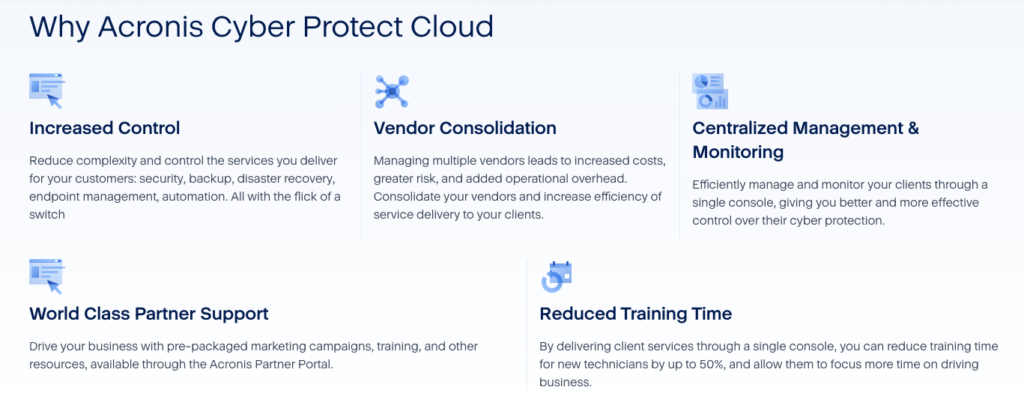
- Unified Solution Unlike many traditional backup solutions that are separate from security tools, Acronis Cyber Protect Cloud combines backup, cybersecurity, and disaster recovery into one platform. This reduces complexity and streamlines operations, as IT teams don’t need to manage multiple tools to ensure their systems are protected.
- Comprehensive Data Protection Acronis Cyber Protect Cloud provides backup solutions for physical, virtual, and cloud environments, supporting a wide range of workloads such as Windows, Linux, macOS, Google Workspace, and Microsoft 365. This flexibility makes it ideal for businesses using various platforms and cloud services.
- Advanced Anti-Malware Protection In addition to backup, Acronis Cyber Protect Cloud includes built-in cybersecurity features such as anti-malware protection and vulnerability assessments. The integrated security helps prevent data breaches, ransomware, and other cyberattacks before they occur, ensuring that backups are protected from malware infections.
- Flexible Cloud and Hybrid Support While competitors often focus solely on cloud or on-premises data protection, Acronis offers a flexible solution that supports hybrid environments. This makes it easier to manage backups for businesses operating in multiple environments, whether fully cloud-based, on-premises, or a combination of both.
- Ransomware Protection Acronis Cyber Protect Cloud includes ransomware protection, helping to detect and block ransomware attacks before they can encrypt your data. It also includes features like automatic backup verification to ensure that backup data is not compromised.
- Cost-Effective and Scalable Acronis Cyber Protect Cloud’s pricing is designed to accommodate businesses of all sizes. The pay-as-you-go pricing model allows businesses to scale their backup solution as needed without overpaying for unused storage or services.
Types of Workloads Supported by Acronis Cyber Protect Cloud
Acronis Cyber Protect Cloud supports a wide variety of workloads, making it an ideal solution for businesses using diverse IT environments. Here are some of the key workloads that are supported:
- Physical Machines
- Windows, Linux, and macOS workstations and servers can be backed up and restored using Acronis Cyber Protect Cloud. This allows businesses to protect all their physical machines, including employee laptops and on-premises servers.
- Cloud Workloads
- Microsoft 365: Acronis Cyber Protect Cloud can back up and protect Exchange Online, SharePoint Online, OneDrive for Business, and Teams data.
- Google Workspace: Acronis supports backup for Google Workspace services, including Gmail, Google Drive, Calendar, and Contacts.
- Virtual Machines
- Acronis Cyber Protect Cloud supports backup and recovery for VMware, Hyper-V, and XenServer environments. Virtualized workloads are backed up in a way that allows for fast recovery and minimal downtime.
- Applications and Databases
- Acronis Cyber Protect Cloud provides application-aware backups for popular business applications and databases like Microsoft SQL Server, Exchange, and SharePoint.
- Remote Work Solutions
- In a remote work environment, Acronis supports remote endpoint backups for devices such as laptops, desktops, and smartphones, ensuring that employees working remotely have their data protected.
- Hybrid Environments
- Businesses operating in hybrid environments (e.g., combining on-premises servers with public or private clouds) can use Acronis Cyber Protect Cloud to back up data across all these environments seamlessly.
How to Set Up Acronis Cyber Protect Cloud for Administrators
Setting up Acronis Cyber Protect Cloud is straightforward for administrators, thanks to its intuitive interface. Here’s a step-by-step guide to getting started:
Step 1: Sign In to Acronis Cyber Protect Cloud Console
- Log in to the Acronis Cyber Protect Cloud Management Console using your administrator credentials.
- If you don’t have an account, create one on the Acronis website.
Step 2: Add Workloads to Protect
- Click on “Add new workload” in the dashboard.
- Choose the type of workload you want to protect: physical machine, cloud workload (Google Workspace or Microsoft 365), virtual machine, etc.
- Follow the on-screen prompts to install the Acronis agent on physical or virtual machines. For cloud workloads like Microsoft 365 or Google Workspace, authenticate and select the services to back up.
Step 3: Configure Backup Policies
- Once workloads are added, configure backup policies by selecting the backup type (full backup, incremental, differential, etc.).
- Set the backup schedule (e.g., daily, weekly) and retention policies (how long to keep backups).
- Enable optional features like anti-malware protection and ransomware detection to ensure that the backups are protected against cyber threats.
Step 4: Choose Backup Destination
- Select where to store your backups: local storage, Acronis Cloud, or a third-party cloud provider.
- Configure storage settings, such as backup compression and encryption, to optimize storage space and security.
Step 5: Monitor and Manage Backups
- After the backup jobs are configured, you can monitor their progress in the Dashboard.
- View detailed reports of backup status, failures, and other key metrics.
- Set up email notifications to receive alerts about backup job status and errors.
Step 6: Test Recovery
Once backups are complete, it’s critical to test the recovery process to ensure that data can be restored in case of an emergency. Perform test restores from the Backup Management console to verify that the backup process is functioning correctly.
Step 7: Review and Adjust Settings
As your needs change, you can review and adjust your backup settings. Acronis Cyber Protect Cloud’s flexibility allows administrators to update backup policies, storage locations, and security settings as required.
Conclusion
Acronis Cyber Protect Cloud is a powerful and flexible solution for businesses looking to integrate data protection, cybersecurity, and backup management into a single platform. By combining backup and security features, it offers superior protection compared to traditional solutions and provides extensive support for a wide range of workloads, including physical machines, virtual environments, and cloud services like Microsoft 365 and Google Workspace.
For administrators, setting up Acronis Cyber Protect Cloud is simple and intuitive. By following the steps outlined in this guide, businesses can ensure that their data is securely backed up and easily recoverable, all while benefiting from advanced anti-malware and ransomware protection. This makes Acronis an ideal choice for organizations that need a comprehensive, reliable, and scalable backup and cybersecurity solution.