https://www.acronis.com/en-us/products/cloud/cyber-protect/management
Ensuring Seamless Updates for Your Systems
In today’s fast-paced digital environment, maintaining system security and performance is paramount. One of the most effective ways to safeguard your systems is through regular patching. However, applying patches can sometimes lead to unexpected issues, rendering systems unusable. This is where Acronis Fail-Safe Patching comes into play, providing a robust solution to ensure that your updates do not disrupt your operations.
What is Acronis Fail-Safe Patching?
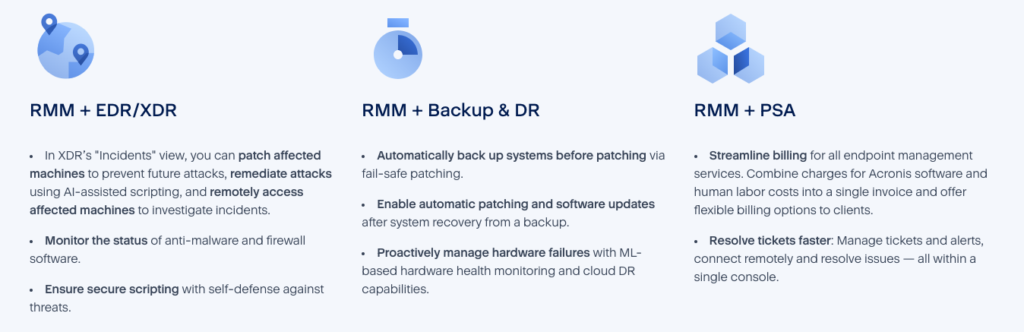
Acronis Fail-Safe Patching is a feature designed to create an image backup of your system before any system or application patch is installed. This pre-update backup acts as a safety net, allowing administrators to roll back to a previous state if the patch causes any problems. This capability significantly reduces the risk associated with patching and ensures business continuity.
Benefits of Fail-Safe Patching
- Quick Rollback: If a patch fails or causes issues, you can quickly revert to the last stable state without extensive downtime.
- Reduced Risk: By having a backup in place, you mitigate the risks of applying faulty patches that could lead to system failures.
- Streamlined Process: Automating the backup process before patching simplifies management and saves time for IT administrators.
How to Apply Acronis Fail-Safe Patching as an Administrator
Applying Acronis Fail-Safe Patching involves several straightforward steps. Here’s how you can implement this feature effectively:
Step 1: Ensure Prerequisites are Met
Before you begin, ensure that:
- You have Acronis Cyber Protect installed and configured in your environment.
- The necessary permissions are granted to manage patching and backups.
Step 2: Configure Your Protection Plan
- Access the Acronis Management Console:
Log in to your Acronis Cyber Protect console. - Create or Edit a Protection Plan:
- Navigate to the Protection Plans section.
- Click on Create Plan or select an existing plan to edit.
- Enable Fail-Safe Patching:
- Within the protection plan settings, look for the option related to Fail-Safe Patching.
- Ensure that the option for creating an image backup before applying patches is enabled.
Step 3: Schedule Vulnerability Assessments and Patching
- Set Up a Vulnerability Assessment Schedule:
- Define which devices will undergo assessments.
- Schedule scans at times that minimize disruption (e.g., during off-peak hours).
- Configure Patch Deployment Settings:
- Choose how often patches should be applied (e.g., weekly).
- Specify maintenance windows to avoid impacting productivity.
Step 4: Monitor and Manage Updates
- Review Vulnerability Reports:
After assessments, review the reports generated by Acronis to identify vulnerabilities that need addressing. - Apply Patches with Confidence:
When patches are ready to be deployed, Acronis will automatically create an image backup before installation, ensuring you can roll back if necessary. - Continuous Monitoring:
Post-deployment, monitor systems for any issues arising from the new patches and ensure that they function as expected.
Conclusion
Acronis Fail-Safe Patching is an invaluable tool for administrators looking to maintain system integrity while keeping software up-to-date. By implementing this feature, organizations can significantly reduce downtime and enhance their overall cybersecurity posture. With automated backups preceding every patch installation, administrators can apply updates with confidence, knowing they have a reliable rollback option if needed. Embrace Acronis Fail-Safe Patching today and safeguard your systems against the risks of bad patches!