Empowering Administrators with Seamless Support
In an era where remote work has become the norm, providing effective support to clients and employees is crucial. Acronis Remote Desktop and Assistance offers a robust solution that enables administrators to manage, troubleshoot, and assist users across various operating systems, including Windows, macOS, and Linux. This article explores how Acronis Remote Desktop and Assistance works and provides a step-by-step guide for administrators on how to utilize this powerful tool.
What is Acronis Remote Desktop and Assistance?
Acronis Remote Desktop and Assistance is a feature within the Acronis Cyber Protect platform that allows IT administrators to remotely access and control client devices. This capability streamlines the support process by enabling technicians to troubleshoot issues directly on the user’s machine without needing physical access. The integration of remote desktop functionality into a unified management console enhances operational efficiency for Managed Service Providers (MSPs) and corporate IT teams alike.
How It Works
The process of using Acronis Remote Desktop and Assistance involves several key steps:
- Initiating the Connection:
- The user requests assistance and grants permission for remote access.
- The technician uses the Acronis console to initiate a connection to the user’s device.
- Authentication and Security:
- Users may need to provide a unique access code or password generated by the Acronis software.
- Acronis employs encryption protocols to secure communications between the technician’s computer and the user’s device.
- Establishing a Connection:
- Once authenticated, a secure connection is established, allowing the technician to view and control the user’s desktop as if they were physically present. The primary protocol used for secure remote desktop access is the Remote Desktop Protocol (RDP), which is commonly utilized in Windows environments. RDP allows users to connect to remote computers and control them as if they were physically present. However, for Linux and macOS systems, the Secure Shell Protocol (SSH) is often employed, providing secure command-line access and management capabilities.
- Troubleshooting and Issue Resolution:
- Technicians can diagnose problems, make configuration changes, or install software remotely while communicating with users via chat or voice call features.
- Closing the Connection:
- After resolving the issue, technicians can disconnect from the user’s device while ensuring that users retain control over their machines.
- Post-Session Communication:
- Technicians may provide a summary of actions taken during the session, along with guidance on preventing similar issues in the future.
How to Use Acronis Remote Desktop and Assistance as an Administrator
As an administrator, utilizing Acronis Remote Desktop and Assistance involves several straightforward steps:
- Enable Remote Desktop Features:
- Access the Acronis Management Console.
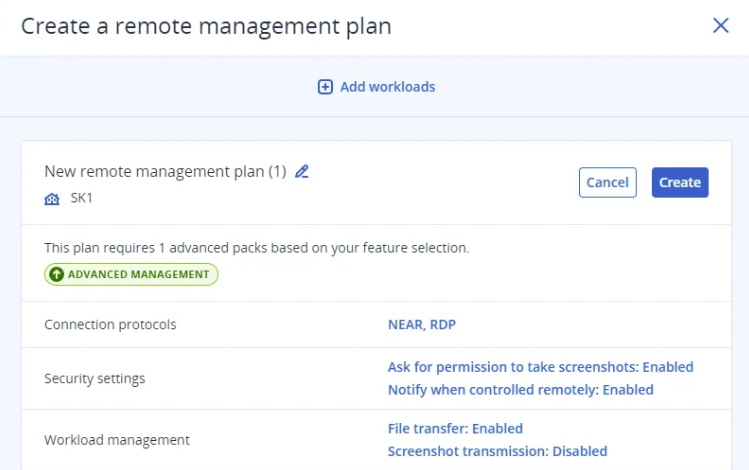
- Navigate to “Management” > “Remote Management Plans” and click “Create Plan.”
- Customize your plan settings as needed, including selecting connection protocols (e.g., Acronis’ proprietary “Near,” RDP, or Apple Screen Sharing).
- Apply the Management Plan:
- After configuring your remote management plan, add workloads by selecting devices you want to apply remote desktop capabilities to.
- Click “Add Workloads” to choose individual devices or groups.
- Connecting to Managed Workloads:
- In the console, go to “Devices” > “All Machines” and select the desired workload.
- Click on the “Remote Desktop” option in the actions panel.
- Choose between different modes: Control (full access) or View-only (monitoring without interaction).
- Using Quick Assist for Immediate Support:
- If a client does not have the Acronis agent installed, use Quick Assist.
- Click “Quick Assist” in the console, download the application, and share it with the user needing assistance.
- The user will receive a workload ID and access code; enter these in your console to establish a connection.
- Performing Actions During a Session:
- Once connected, you can perform various actions such as troubleshooting issues, transferring files between local and remote machines, or even shutting down or rebooting systems as needed.
- Utilize session recording features for auditing purposes or training new team members.
- Post-Session Follow-Up:
- After completing support tasks, follow up with users by summarizing actions taken during the session.
- Provide tips for preventing future issues based on your observations during the support interaction.
Conclusion
Acronis Remote Desktop and Assistance is an essential tool for IT administrators looking to enhance their support capabilities across diverse operating systems. By enabling seamless remote access, this feature not only improves response times but also fosters better communication between technicians and users. With its robust security measures and user-friendly interface, Acronis empowers administrators to deliver high-quality support efficiently. Embrace Acronis Remote Desktop and Assistance today to streamline your IT operations and ensure uninterrupted service delivery!