How to Extract Company Lists from the Web
If you’re looking for a fast and easy way to extract data from websites, Instant Data Scraper is a powerful free Chrome extension that can help. Whether you want to gather company lists, contacts, or other valuable data from public internet sources, this tool automates much of the tedious manual copy-pasting work.
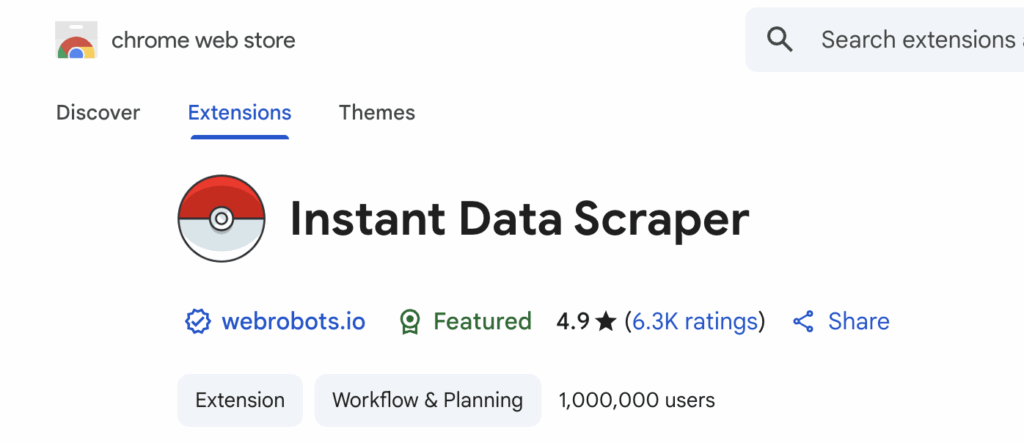
What is Instant Data Scraper?
Instant Data Scraper is an AI-driven Chrome extension that detects tabular or structured data on web pages and allows you to scrape it instantly. It intelligently parses HTML page structures and extracts the most relevant data in a clean format. You can then export this data to CSV or Excel formats for further analysis or lead generation.
The extension is especially useful for marketers, sales professionals, researchers, and anyone needing to bulk-collect data easily without coding.
How to Install Instant Data Scraper on Chrome
- Open the Chrome browser.
- Go to the Chrome Web Store.
- Search for Instant Data Scraper in the search bar.
- Click Add to Chrome next to the Instant Data Scraper extension.
- Confirm the installation when prompted.
Once installed, the Instant Data Scraper icon will appear in your Chrome toolbar, ready to be activated on any data-rich website.
Using Instant Data Scraper to Get Company Lists
Here’s how to use Instant Data Scraper to extract lists of companies from public websites—especially when targeting a specific vertical or industry sector:
- Find a Website with Relevant Company Data:
Many companies are listed on business directories or databases online. One rich source for company lists is the Dun & Bradstreet (DNB) database available at dnb.com. - Use Google to Narrow Your Search:
You can target a specific vertical by searching Google with a phrase like:site:dnb.com "vertical name"
For example, if you’re looking for IT companies, you could search:site:dnb.com IT companiesorsite:dnb.com software companies - Open the Search Results:
Click on a relevant page from the dnb.com domain that lists companies in your target vertical. - Activate Instant Data Scraper:
Click the Instant Data Scraper icon in Chrome’s toolbar. The tool will scan the page for tables or structured data. - Review and Adjust:
Preview the data it captures and verify that company names, addresses, contacts, or other needed details are properly selected. You can switch between detected tables or manually select specific data if needed. - Export the Data:
Click Export to CSV or your preferred format to download the list. This CSV file can then be opened in Excel or CRM software for lead generation or analysis.
Example: Extracting Software Companies from DNB
- Go to Google and enter:
site:dnb.com software companies - Open a relevant company listing page on dnb.com.
- Click the Instant Data Scraper extension to extract the company names, locations, phone numbers, and other data.
- Export the data for your marketing campaigns or sales outreach lists.
Important Tips for Using Instant Data Scraper
- The extension often auto-detects pagination (multiple pages), but if not, you may need to configure pagination settings for multi-page data scraping.
- If the site requires login, log in first so the scraper can access all available data.
- Always comply with website terms of use and legal guidelines when scraping data.
- Double-check exported data for completeness and formatting issues.
Instant Data Scraper is a handy, no-cost tool that brings web data extraction within reach even for non-technical users. Using simple Google search techniques like restricting searches to dnb.com makes it easy to target niche verticals and generate focused company lists for business needs.
This combination of Google search and Instant Data Scraper helps unlock vast troves of publicly available company information efficiently. Give it a try to boost your lead generation and market research efforts today!