Setting up my environment for a create-react-app project, I asked ChatGPT for the most common extensions for ReactJS
Here is the response if you’re setting up a similar environment.
Basics & Shortcuts
Visual Studio Code (VS Code) is one of the most popular code editors today. It’s lightweight, fast, and works across Windows, macOS, and Linux. With a huge extension library, built-in Git support, and an integrated terminal, it’s designed to boost productivity for beginners and advanced developers alike.
Key Features:
- Lightweight but powerful – handles small edits or large projects with ease.
- Extensions marketplace – add themes, frameworks, debuggers, and more.
- Built-in Git integration – manage commits and branches without leaving the editor.
- Integrated terminal – run commands right inside VS Code.
Useful Shortcuts:
| Action | Windows | Mac |
|---|---|---|
| Open/close terminal | Ctrl + ` | ⌘ + ` |
| Command Palette (all commands) | Ctrl + Shift + P | ⌘ + Shift + P |
| Toggle sidebar | Ctrl + B | ⌘ + B |
| Comment/uncomment line | Ctrl + / | ⌘ + / |
| Quick file search | Ctrl + P | ⌘ + P |
Learning these shortcuts early will save you time and help you stay focused on writing code instead of navigating menus.
Here are some of the most popular ReactJS-related extensions for Visual Studio Code (VS Code) that enhance development productivity:
1. ESLint
- Purpose: Ensures code adheres to specified linting rules.
- Why it’s useful: Helps identify and fix errors, maintain consistent coding styles, and supports React-specific linting rules.
2. Prettier – Code Formatter
- Purpose: Formats code automatically.
- Why it’s useful: Keeps your codebase clean and uniform across teams.
3. React Developer Tools
- Purpose: Debug React applications.
- Why it’s useful: Simplifies the debugging of React components with props and state inspection.
4. Reactjs code snippets
- Purpose: Provides a set of React-specific snippets for faster coding.
- Why it’s useful: Quickly generate React boilerplate code such as functional components, useEffect hooks, or state initialization.
5. vscode-styled-components
- Purpose: Syntax highlighting for styled-components.
- Why it’s useful: If you use
styled-componentsin your React app, this makes the CSS-in-JS code easier to read.
6. Bracket Pair Colorizer 2
- Purpose: Colorizes matching brackets.
- Why it’s useful: Helps identify matching brackets, especially useful in deeply nested JSX.
7. Auto Rename Tag
- Purpose: Automatically renames paired HTML/JSX tags.
- Why it’s useful: Keeps JSX tags synchronized when editing.
8. Path Intellisense
- Purpose: Autocompletes file paths.
- Why it’s useful: Saves time navigating through your project structure.
9. GitLens
- Purpose: Enhances Git capabilities within VS Code.
- Why it’s useful: Provides insights into code history and contributors directly within the editor.
10. VS Code Icons
- Purpose: Adds icons for different file types and folders.
- Why it’s useful: Improves file structure visualization for React projects.
11. Code Spell Checker
- Purpose: Catches typos and spelling errors.
- Why it’s useful: Helps maintain professional-quality comments, documentation, and variable names.
12. JavaScript (ES6) code snippets
- Purpose: Offers code snippets for modern JavaScript.
- Why it’s useful: Facilitates faster development of React components using ES6 features like
arrow functions,destructuring, etc.
13. Tailwind CSS IntelliSense
- Purpose: Adds IntelliSense for Tailwind CSS.
- Why it’s useful: If you’re using Tailwind CSS in your React project, this extension speeds up the development process.
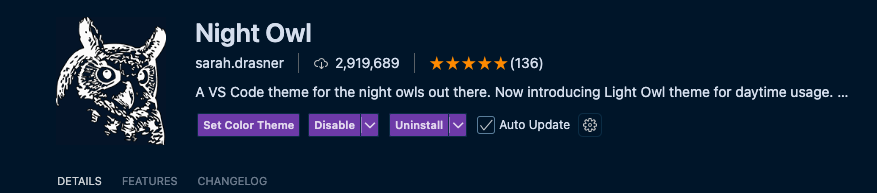
13. Night Owl Code Theme
- Purpose: To be easy on the eyes for those who code at night.
- Why it’s useful: You can choose between a light theme and a dark theme.
ChatGPT then asked me if I would like help setting up my development environment, and I answered yes.
Here’s a step-by-step guide to set up a React development environment in VS Code:
1. Install Prerequisites
Before setting up your environment in VS Code, ensure you have the following installed:
a. Node.js
- Download and install Node.js. It comes with
npm(Node Package Manager), which you’ll use to manage packages.
b. VS Code
- Download and install Visual Studio Code.
2. Create a React Project
- Open your terminal and run:
npx create-react-app my-app- For TypeScript:
npx create-react-app my-app --template typescript
- For TypeScript:
- Navigate into the project folder:
cd my-app - Open the project in VS Code:
code .
3. Install VS Code Extensions
Here are the essential extensions to install for a React development environment:
- ESLint
Helps you enforce coding standards and find errors.- After installation, add an ESLint configuration file (
.eslintrc.json) to your project:npx eslint --init
- After installation, add an ESLint configuration file (
- Prettier – Code Formatter
Automatically formats your code.- Add a
.prettierrcfile to customize formatting rules:{ "semi": true, "singleQuote": true }
- Add a
- Reactjs Code Snippets
Provides React-specific code snippets (e.g.,rfcfor functional components). - Auto Rename Tag
Automatically renames paired tags in JSX. - Path Intellisense
Helps with autocompletion of file paths inimportstatements. - Bracket Pair Colorizer 2
Makes nested JSX tags easier to visualize. - Tailwind CSS IntelliSense (optional, if using Tailwind CSS).
4. Set Up VS Code Settings
You can enhance your workflow by tweaking VS Code’s settings. Open the Settings (Ctrl + ,) and configure:
a. Format on Save
Enable automatic code formatting on save:
"editor.formatOnSave": true,
"[javascript]": {
  "editor.defaultFormatter": "esbenp.prettier-vscode"
},
"[typescript]": {
  "editor.defaultFormatter": "esbenp.prettier-vscode"
}
b. ESLint Integration
Ensure ESLint fixes problems on save:
"editor.codeActionsOnSave": {
  "source.fixAll.eslint": true
}
5. Run the Development Server
Start the React app with:
npm start
This will launch the development server and open the app in your browser (default: http://localhost:3000).
6. Add Git and Version Control
- Initialize a Git repository:
git init - Create a
.gitignorefile:node_modules/ build/ - Commit your code and push it to a remote repository like GitHub.
7. Optional Enhancements
Add Tailwind CSS
If you prefer utility-first styling:
- Install Tailwind CSS:
npm install -D tailwindcss postcss autoprefixer npx tailwindcss init - Configure
tailwind.config.jsand import Tailwind styles insrc/index.css.
Install Axios
For making HTTP requests:
npm install axios
With this setup, you’ll have a fully functional and optimized React development environment. Let me know if you need help configuring any part!